Control Apple’s Siri AI Privacy in iOS 27
Learn how to manage Siri AI access permissions in iOS 27 and protect your personal data from unauthorized access.
Siri AI privacy controls
Why Siri AI Privacy Controls Matter More Than Ever
Apple’s latest iteration of Siri in iOS 27 brings powerful AI capabilities that can learn your habits, access your messages, and interact with your apps in ways previous versions never could. But with that power comes a critical question: how much of your personal information should this AI really see?
The problem isn’t that Siri is inherently dangerous—it’s that by default, the system grants broad permissions to access sensitive data across your device. Without actively managing these settings, your AI assistant could potentially access contacts you’d rather keep private, read through old conversations, or trigger actions in apps without your explicit awareness in each moment.
Understanding Siri AI Access Permissions in iOS 27
iOS 27 introduces a new permission framework specifically designed for AI features. Unlike earlier versions where Siri operated mostly within Apple’s own ecosystem, the latest Siri can now integrate more deeply with third-party apps and services. This expanded functionality means more granular control is necessary.
The system differentiates between several types of access: personal data (contacts, calendar, notes), communication data (messages and email), app-specific permissions, and device features like location. Each category can be managed independently, giving you precise control over what your AI assistant can and cannot do.
Apple’s approach here reflects guidance from privacy advocates who argue that users should explicitly consent to AI system access rather than having broad permissions bundled together. You’re not turning Siri off entirely—you’re defining boundaries for what the AI should be able to reach.
Step-by-Step: Configuring Your Siri Permissions
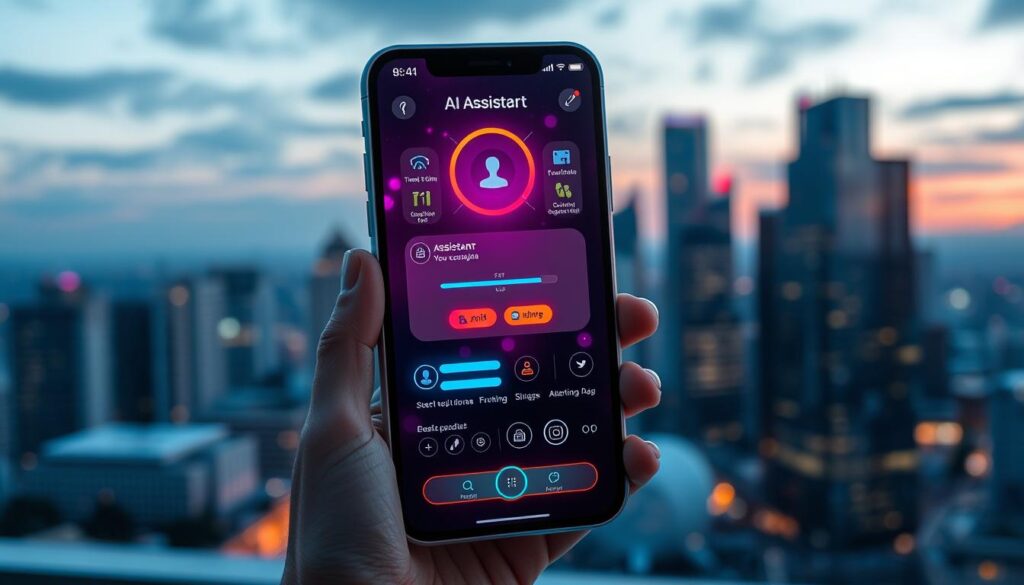
Start by opening Settings on your iOS 27 device and navigating to Siri & Search. You’ll see a new section labeled “AI Privacy Controls” that wasn’t present in earlier iOS versions. This is your command center for managing what Siri can access.
Under “Personal Data Access,” you’ll find toggles for specific information categories:
- Contacts: Controls whether Siri can read and interact with your contact list. Disable this if you want Siri to help with messaging and calls without having full visibility into who you know.
- Calendar Events: Governs access to your schedule. Consider limiting this if you have sensitive meetings you’d rather not have analyzed by AI.
- Notes and Reminders: Determines whether Siri can read content from your notes app. This is especially important if you store passwords or confidential information there.
- Health and Fitness Data: Controls access to data from the Health app. Disable if you prefer your biometric information stays private from AI processing.
- Location Services: Manages whether Siri can access your real-time location or location history.
For each category, you can choose between full access, limited access (for specific apps only), or no access. Most users benefit from selecting “limited” mode, which lets Siri help with immediate requests without storing or analyzing your historical data.
Managing Third-Party App Integration with Siri AI
One of iOS 27’s bigger changes is how Siri interacts with non-Apple apps. Under the “App Integrations” section, you’ll see a list of applications that have requested AI access. This might include productivity apps, communication platforms, or smart home controllers.
For each app, you can specify exactly what data Siri is allowed to share or retrieve. For example, you might allow a note-taking app to work with Siri for voice-to-text features while preventing it from accessing other apps’ data. This granular approach prevents situations where a third-party app could theoretically request information from unrelated apps through your AI assistant.
Review this list regularly, especially after updating apps. New versions sometimes request expanded permissions, and iOS 27 will notify you when an app changes its access requests. Don’t automatically approve—take a moment to understand why an app needs what it’s asking for.
Advanced Privacy Settings for Power Users
If you’re particularly privacy-conscious, iOS 27 includes an “Advanced” section with additional controls. The “AI Data Retention” setting lets you choose how long Siri keeps interaction logs. You can select immediate deletion, 24-hour retention, or 30-day retention.
There’s also an “On-Device Processing” toggle. When enabled, this forces Siri to handle as much AI analysis as possible directly on your phone rather than sending data to Apple’s servers. This comes with a minor trade-off—some advanced features may respond slightly more slowly—but many users consider the privacy benefit worth it.
The “Activity Dashboard” feature provides transparency about what Siri has been accessing. You can view which apps requested data, what information was shared, and when these interactions occurred. This audit trail is helpful for identifying unexpected access patterns.
One often-overlooked setting is “Contextual Learning.” When disabled, Siri won’t use patterns from your behavior to anticipate your needs. It sounds less helpful, but it means your device gathers less information about your habits over time. Toggle this based on whether you value predictive assistance or privacy maximization.
What You Need to Know Before Updating
If you’re currently running iOS 26 or earlier, understand that updating to iOS 27 will require you to configure these permissions. Apple doesn’t automatically migrate your old Siri settings—you’ll see a setup wizard that walks you through the new privacy controls.
Don’t rush through this wizard. Read each permission request carefully. You can always adjust settings later through the Settings app, but starting with restrictive defaults and loosening permissions as needed is safer than the reverse approach.
One practical tip: if you use Siri heavily for certain tasks (like controlling smart home devices or checking work calendar), keep those specific permissions enabled while restricting access to less-essential data. This balanced approach gives you AI assistance where it’s most useful without unnecessary broad access.
Common Questions About Siri AI Privacy Controls
Will limiting Siri’s access make it less useful? Not necessarily. Siri functions well with restricted permissions for most common tasks like setting reminders, making calls, sending messages, and controlling HomeKit devices. Advanced features like predictive suggestions may be less effective, but basic functionality remains robust.
Can I change these settings after the initial iOS 27 setup? Yes. You can modify any permission at any time through Settings > Siri & Search > AI Privacy Controls. Changes take effect immediately.
Is my data safe if I grant Siri full access? Apple uses encryption for data in transit and at rest, but granting broad permissions means more data flows through Apple’s systems. The safety question is really about data exposure and access scope rather than encryption strength. Limiting access reduces the overall data surface area, which is a privacy best practice regardless of encryption standards.
Take time this week to audit your Siri permissions in iOS 27. Open Settings, navigate to Siri & Search, and review what access you’ve actually granted. You might be surprised what permissions are active by default, and adjusting them takes just minutes but provides significant peace of mind about your digital privacy.