Copilot Gets Major Redesign With New Unified AI Interface
Microsoft’s Copilot app now merges chat, Office tools, coding, and autonomous agents into one workspace. Learn about Home, Code, and Autopilot features reshaping how you work with AI.
Copilot redesign features
Copilot Redesign: Three Major Changes You Need to Know
Microsoft just announced a sweeping overhaul of its Copilot app, and the changes are significant enough to reshape how millions of users interact with AI at work. Rather than juggling separate tools and switching between applications, the redesigned Copilot aims to centralize your AI-assisted work in one place. The company is positioning this as a “super app” that combines conversational AI, productivity software, code generation, and autonomous task management under a single interface.
The update reflects CEO Satya Nadella’s vision of bringing Copilot experiences—including coding and office work—into one cohesive platform. What makes this different from previous Copilot iterations is the scope: Microsoft is now integrating not just AI chat, but actual Office applications, development tools, and background agents that work without your constant input.
Home: Your New AI Work Hub
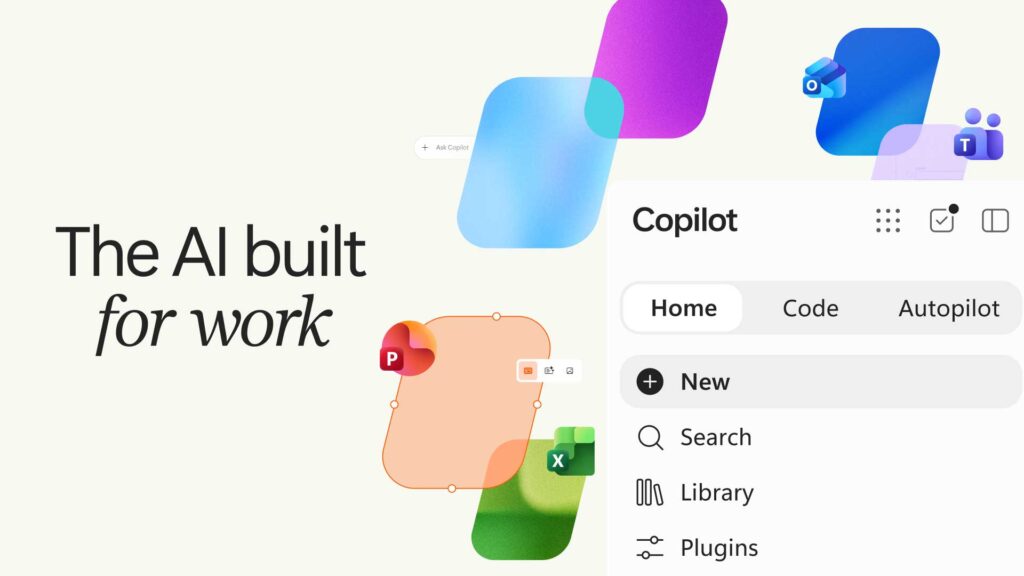
The first pillar of the redesign is called Home, which combines Microsoft’s AI chat experience with Copilot Cowork and Office integration. Think of it as your command center—a single dashboard where conversations, files, and applications live side by side.
Inside Home, you can directly work with Word, Excel, and PowerPoint without constantly switching windows. You can create a spreadsheet, ask Copilot to analyze it, draft a report in Word, and refine presentation slides—all without leaving the app. This addresses one of the biggest productivity pain points: context-switching fatigue.
Microsoft designed Home to be your starting point for any work task. When you open Copilot, you’ll see your recent conversations, pinned files, and suggested next steps based on what you’ve been working on. It’s similar to how modern productivity apps try to surface your most relevant information first, but applied to the entire Office ecosystem plus AI assistance.
Code: AI-Powered Development for Everyone
The second major addition is Code, which harnesses technology from GitHub Copilot to democratize software development. This isn’t just another coding tool—it’s designed to let non-developers build applications using plain English instructions.
Imagine describing what app or feature you want to create in conversational language, and having AI generate functional code based on that description. That’s the promise of Code. Professional developers will use it to accelerate their workflow, while business analysts, product managers, and other non-technical users can attempt to build tools without learning programming languages.
The Code section integrates seamlessly with the rest of Copilot, so you can move from planning a project in your chat conversation to writing and testing code without opening a separate IDE or development environment. For teams, this could mean faster prototyping and reduced dependency on specialized engineering resources for simple applications.
Autopilot: AI That Works in the Background
Perhaps the most ambitious feature in this redesign is Autopilot, Microsoft’s new persistent AI agent. Unlike traditional chatbots that passively wait for your questions, Autopilot is designed to proactively work on assigned tasks even when you’re not actively using Copilot.
You can assign Autopilot recurring or long-running tasks—things like monitoring project status, generating weekly reports, organizing files, or processing incoming data. Autopilot keeps operating in the background, pulling information from your organization’s applications and systems, and completing work on its own timeline.
What’s particularly noteworthy is how Microsoft is handling control and security. Autopilot gets its own digital identity within your company’s systems, which allows IT administrators to define exactly what information and applications it can access. You can audit its activity, set data-protection rules, and apply security controls just as you would for a human user. This approach suggests Microsoft is taking seriously the concerns around autonomous AI agents accessing sensitive business information.
Why This Matters: The Competition Heats Up
Microsoft’s overhaul is partly a response to mounting competition from OpenAI and Anthropic, both of which are expanding beyond chatbots into productivity tools and autonomous agents. By bundling these capabilities into one app, Microsoft leverages its massive advantage: Windows, Microsoft 365, Teams, Outlook, Word, Excel, and decades of workplace infrastructure.
The company is also opening Copilot to AI models from multiple providers, rather than relying exclusively on OpenAI technology. Customers can now choose between models from OpenAI, Anthropic, and others depending on which AI system works best for their specific job. This flexibility is a significant move toward making Copilot a neutral platform rather than a locked-in ecosystem.
Usage metrics suggest the strategy is working. Conversations per user have nearly doubled year on year, and average weekly engagement is now comparable to Outlook and Teams—two of Microsoft’s most ubiquitous business apps. Even more telling: the number of customers deploying Copilot to more than 50,000 employees has increased more than sevenfold year on year.
What This Means for Your Workflow
If you use Microsoft Office regularly or work in a company with Microsoft infrastructure, this redesign is worth paying attention to. The Copilot redesign isn’t about flashy new features—it’s about reducing friction and creating a more cohesive workspace.
In practice, this could mean fewer context switches, faster document creation, simplified code building, and less manual task management. For IT teams, it means a consolidated place to manage AI access and security instead of monitoring disparate tools.
Frequently Asked Questions
Is the redesigned Copilot available now? Microsoft has announced the overhaul, and components like Home and Code are rolling out to users. Autopilot availability may vary depending on your subscription level and organization’s setup. Check Microsoft’s official announcements for your specific region and account type.
Do I need a special subscription to access these features? The source doesn’t specify pricing tiers, so you’ll want to check Microsoft’s documentation or your admin dashboard. Enterprise customers using Copilot for business likely have different access than consumer users.
Is Autopilot safe to use with sensitive company data? Microsoft built access controls and audit trails into Autopilot, allowing administrators to restrict what data the agent can touch. However, like any background automation tool, it’s wise to discuss usage policies with your IT team before rolling it out widely.
What to Try Next
If you have access to the redesigned Copilot, start by exploring the Home view and notice how it surfaces your recent work. Try using it to draft or refine an Office document—this will help you understand how the integration actually works compared to using Copilot separately. If your organization supports it, experiment with Code to see whether non-developers on your team can articulate project ideas that AI can turn into functional prototypes. Keep an eye on Autopilot announcements for your account, as this feature is likely to evolve rapidly once it becomes widely available.